What is Google Map embed code?
Google Map embed code is an HTML <iframe> that displays an interactive map inside a web page. Visitors can pan, zoom, open place details, and explore the surrounding area without leaving your website. A map iframe is commonly used on contact pages, store locators, property listings, event pages, travel guides, and local service websites.
An embeddable Google Map is different from a static image. The iframe loads a live map, while the surrounding page remains under your control. This makes it a practical Google Map widget for a website that needs clear location information without custom JavaScript.
How to use the Google Map embed code generator
The generator above creates the iframe and its responsive wrapper for you. It works as a Google Maps iframe generator and live preview, so you can check the location before copying any code.
- Choose a location mode. Search by address or place name, enter exact latitude and longitude, or select My Maps for a custom map.
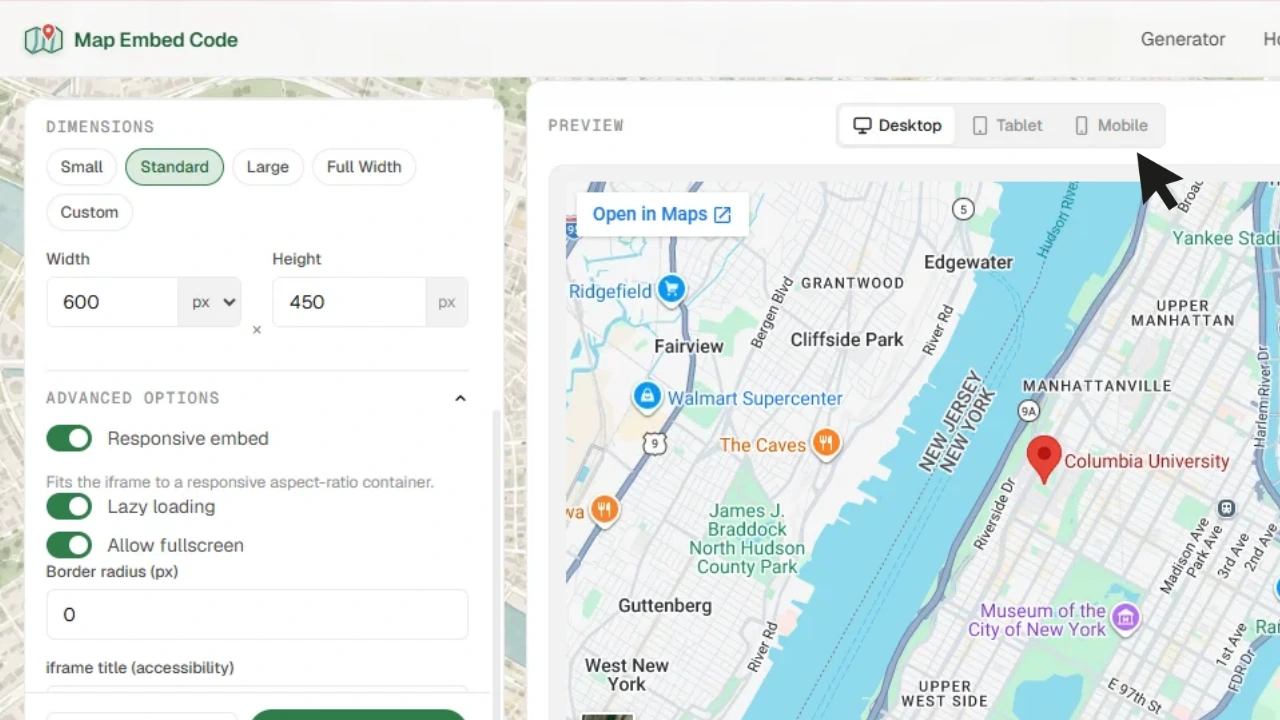
- Adjust the map. Choose roadmap or satellite view, set the zoom distance, and select the required dimensions.
- Preview the result. Confirm that the correct address, marker, route, or custom map appears.
- Generate the code. Select Generate Code, copy the HTML, and paste it into the page where the map should appear.
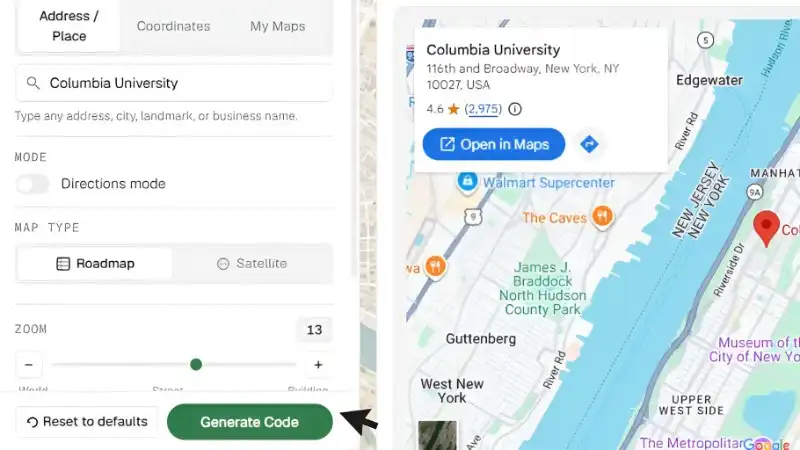
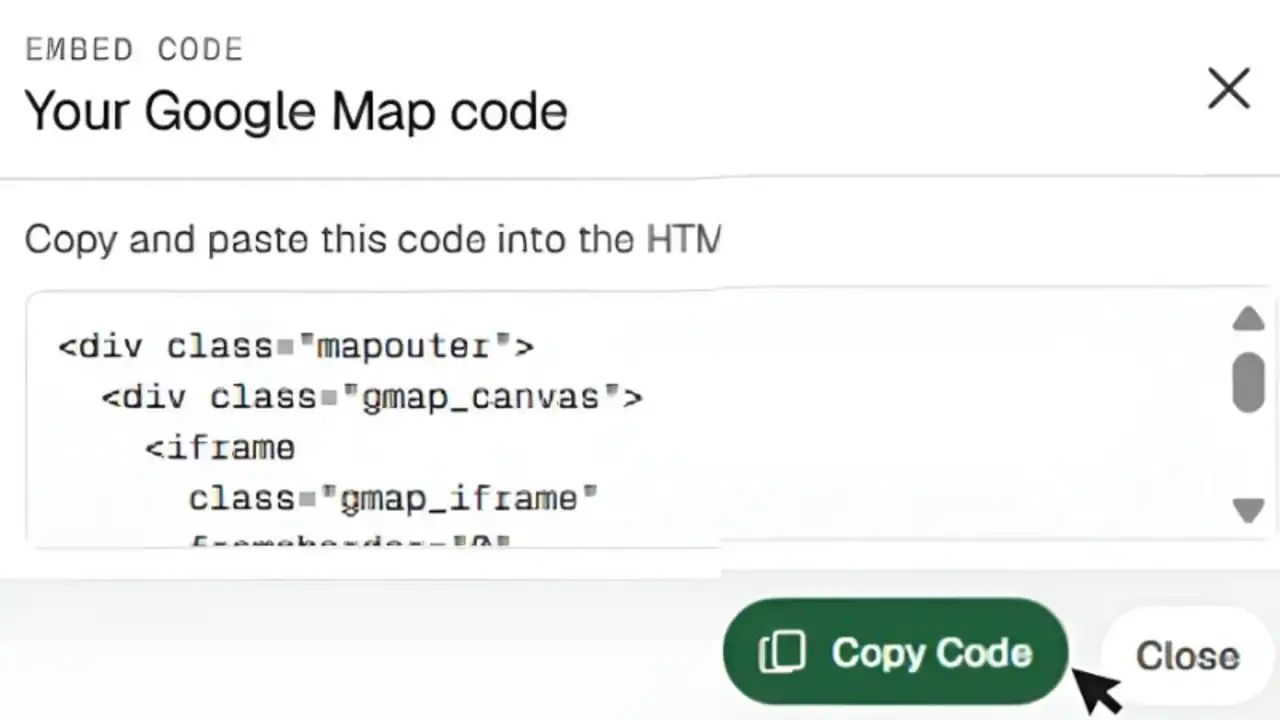
This workflow can add a Google address map to a website in a few minutes. For a single business or venue, enter its complete address to add a Google Map to the website with a marker. Exact coordinates are useful when an address is incomplete, newly created, or located in a large site such as a park or university campus.
<div class="mapouter">
  <div class="gmap_canvas">
    <iframe
      class="gmap_iframe"
      src="https://maps.google.com/maps?q=New+York&z=7&output=embed"
      loading="lazy"
      allowfullscreen
    ></iframe>
  </div>
</div>
The generated HTML also includes the required CSS class rules. You can therefore use it as a Google Map generator for a website without writing the iframe or sizing styles manually.
Responsive and full-width Google Map embeds
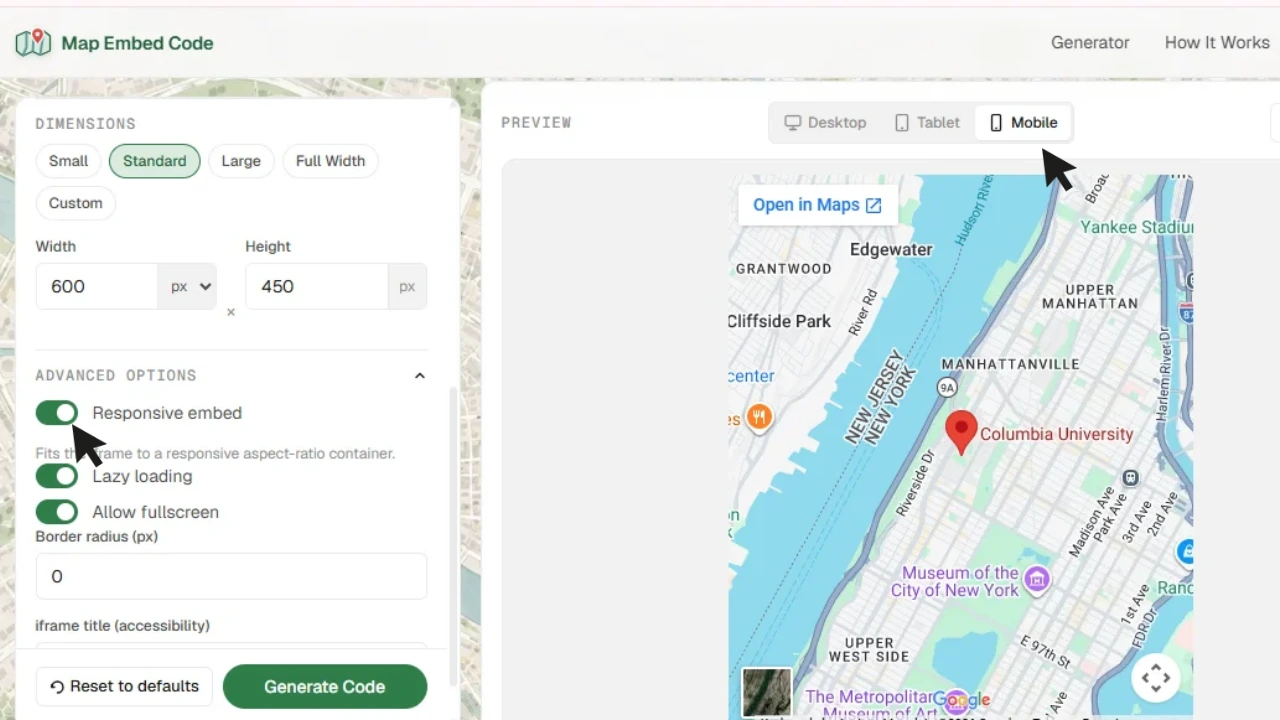
A fixed-width iframe can overflow on a phone. A responsive Google Map embed uses a wrapper that follows the available width while preserving the selected map ratio. Responsive mode is enabled by default, making the iframe suitable for narrow mobile layouts and wider desktop content areas.
For a full-width Google Map embed, choose a percentage width or let the responsive wrapper use width:100%. The map then fills its parent section rather than the entire browser window. If it still looks narrow, check whether your theme places the embed inside a limited-width column.
Google Map Embed API versus an iframe without an API key
Basic location maps generated on this page use an iframe URL and can be embedded in HTML without an API key. You do not need to create a Google Cloud project or add billing information for this generator's standard address, coordinate, and public My Maps embeds.
The official Google Maps Embed API is a separate Google Cloud product. Its documented URLs include an API key and support defined modes such as place, view, directions, street view, and search. The Maps JavaScript API is another option for advanced application features such as programmatic markers, custom controls, event handling, and data-driven interactions.
| Method | Best for | API key |
|---|---|---|
| Generated iframe | Addresses, coordinates, responsive maps, and public My Maps | Not required |
| Maps Embed API | Documented Google Cloud embed modes | Required |
| Maps JavaScript API | Custom interactive applications and advanced marker behavior | Required |
For a contact page or a straightforward location section, a Google Map embed without an API key is usually the simpler choice. Choose an API product when the project needs behavior that a normal iframe cannot provide.
Embed directions, a marker, or a map with multiple locations
To embed directions in Google Maps, enable Directions mode, enter the starting point and destination, and confirm the route in the preview. This is useful for hotels, offices, event venues, clinics, and any page that needs to show how to reach a destination.
A standard address search adds one Google Map marker. To add a Google Map to a website with multiple locations, first create a public map in Google My Maps. Add and style each place there, choose Embed on my site, and paste the iframe or embed URL into the generator's My Maps tab. The resulting Google Map embed can display multiple markers while remaining responsive.
Multiple markers and multi-stop directions serve different purposes. Markers show independent branches, properties, or venues. Directions connect locations in travel order. For a detailed marker workflow, read how to embed a Google Map with multiple locations.
Embed Google Maps in a website, WordPress, or a page builder
The generated code works anywhere custom iframe HTML is allowed. In a plain website, paste it inside the page's <body>. In visual site builders, use an HTML, embed, code, or custom-liquid element rather than a normal text block.
- WordPress: use a Custom HTML block or widget. Follow the Google Map embed WordPress guide.
- Shopify: paste the code into a Custom Liquid section or an HTML-capable page area. See the Shopify guide.
- Wix and Squarespace: use the platform's HTML embed or code block.
- Webflow: add an Embed component and paste the complete generated code.
- Dreamweaver: switch to Code view and place the iframe where it should appear inside the document body.
If a platform removes the iframe after saving, confirm that the account role is allowed to publish custom HTML. Some hosted editors restrict iframe code for contributors while allowing it for administrators.
Google Map iframe performance and accessibility tips
- Keep
loading="lazy"enabled so the browser can delay an off-screen map. - Use a clear iframe title so screen-reader users know what location the map represents.
- Place the street address, phone number, and opening hours in normal page text near the map.
- Check the map on mobile and make sure it does not block scrolling or overflow its container.
- Use exact coordinates when Google selects the wrong place for an ambiguous address.
These steps keep the Google Map widget useful even when a visitor cannot interact with the map itself, and they make the surrounding location information easier for search engines and assistive technology to understand.