A standard Google Maps iframe usually focuses on one address. If your business has several branches, service areas, pickup points, event venues, or properties, Google My Maps lets you place them on one custom map. You can label and color the pins, group them into layers, and publish the finished map as an iframe.
Watch: create a multiple-location map in Google My Maps
The video below demonstrates the Google My Maps workflow used in this guide. Watch it once for the overall process, then follow the illustrated steps for the exact embed setup.
Video: How to Create a Multiple Locations Map on Google – Full Tutorial.
Step 1
Open Google My Maps and create a new map
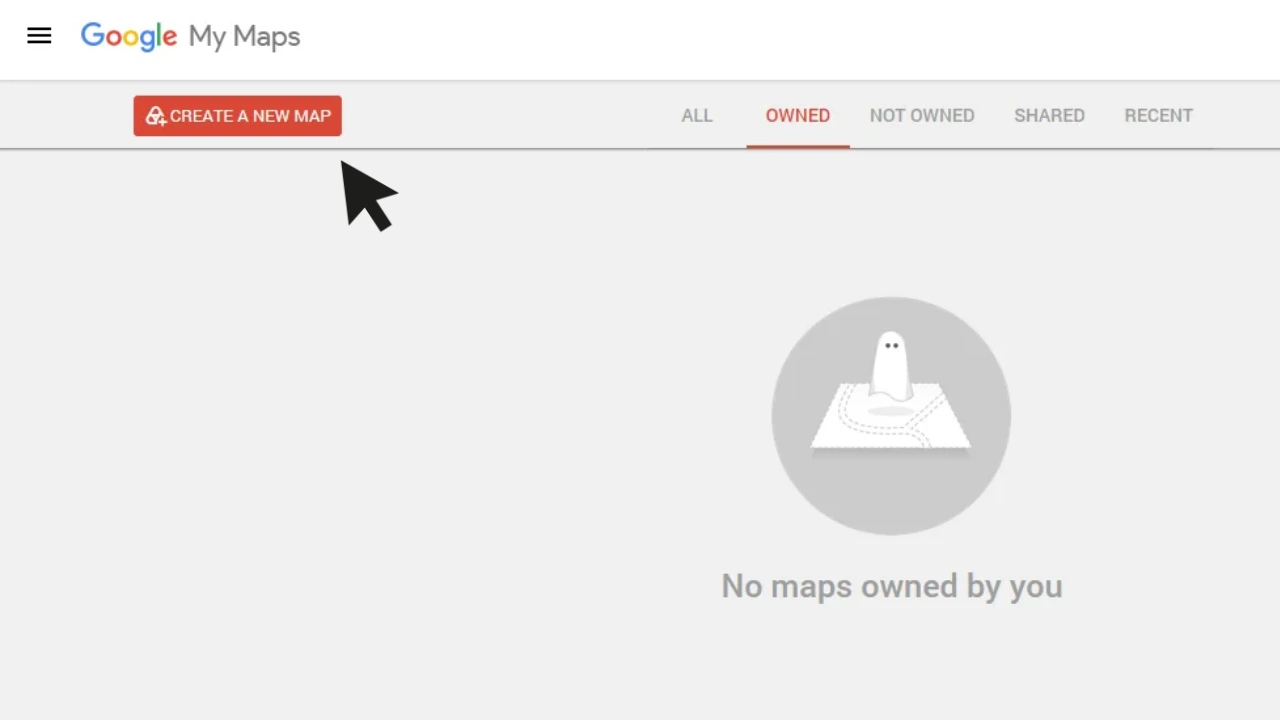
On the generator, select My Maps under Location and use the Open Google My Maps link. Sign in to the Google account that should own the map. On the My Maps dashboard, select Create a New Map to open a blank map editor.
If the dashboard shows maps from another account, switch accounts before continuing. The account that creates the map controls its locations, styling, and sharing permissions.
Step 2
Name and save your custom map
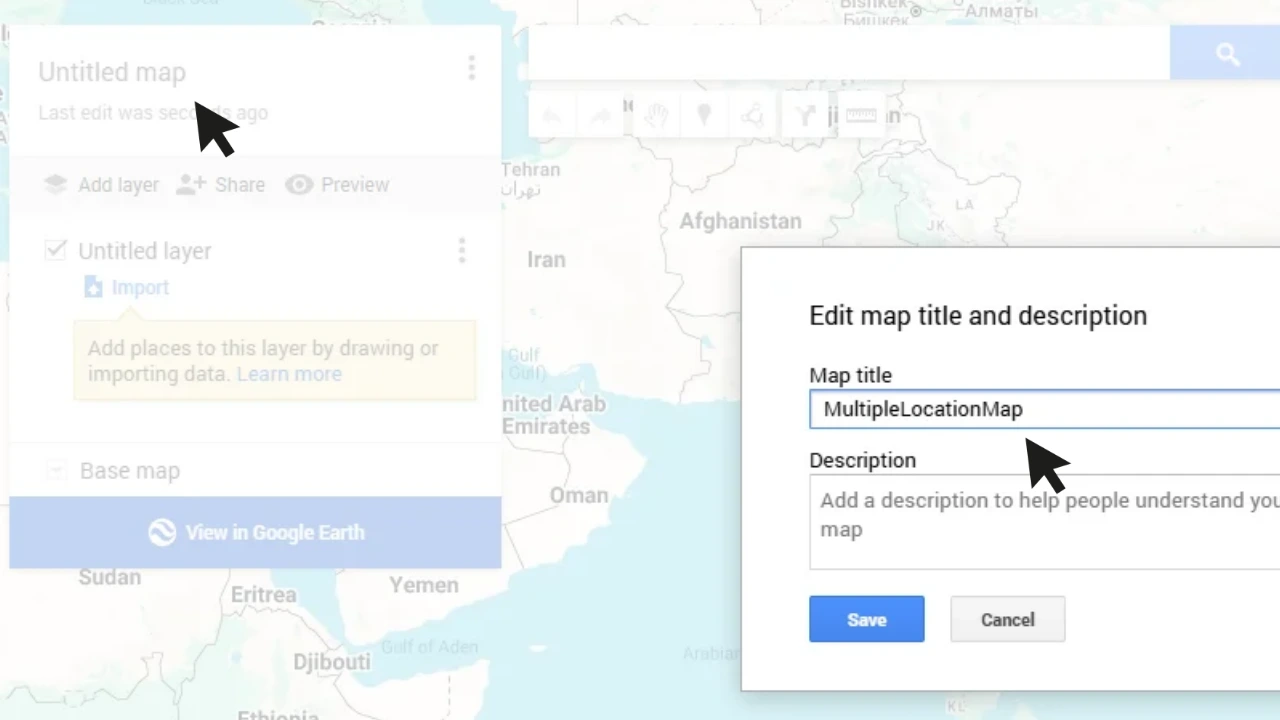
In the upper-left panel, select Untitled map. Enter a short, descriptive title such as Our Store Locations, Pickup Points, or Conference Venues. Add an optional description that explains what the markers represent, then select Save.
A clear title helps you identify the correct map later, especially if you manage several My Maps projects. This title can also appear when visitors open the embedded map.
Step 3
Search for and add your first location
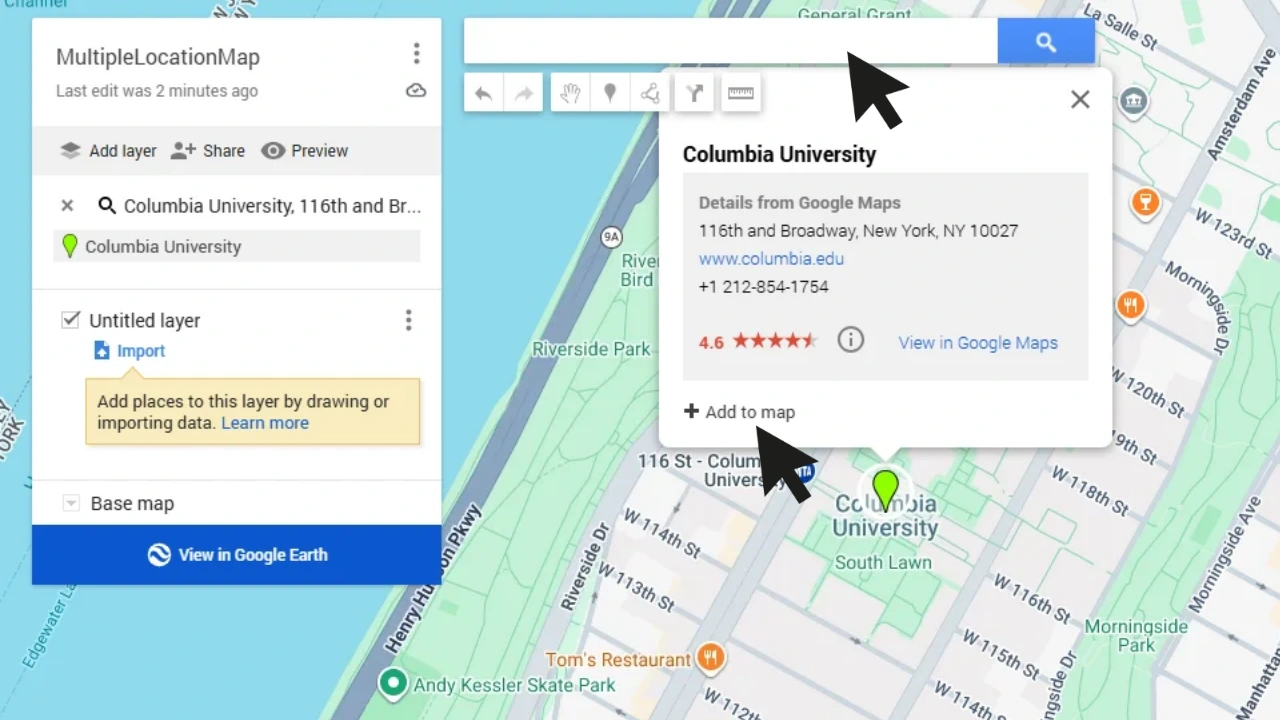
Type the first business name, landmark, or complete street address into the search bar. Choose the correct result and check its address in the information card. When the location is correct, select Add to map. The place will be saved in the active layer and will remain visible after you run another search.
If several results have similar names, include the city, state or region, and postal code. For a place that is not searchable, use the marker tool to place a pin manually and give it a clear name.
Step 4
Add more locations, style the markers, and select Share
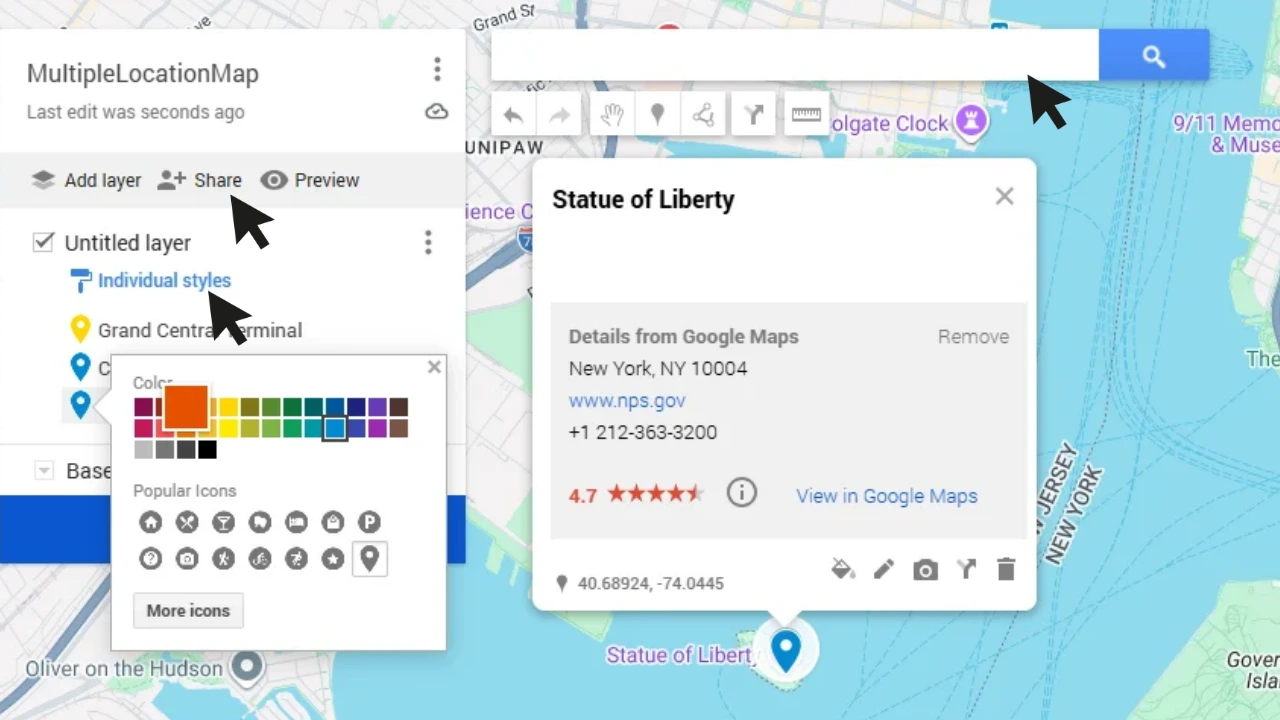
Repeat the search and Add to map process for every location. Each saved place appears in the layer list. Select a marker’s style icon to change its color or choose a more descriptive symbol. For example, stores can use one color, pickup points another, and offices a third.
Rename unclear entries and add descriptions where visitors need phone numbers, opening hours, parking details, or booking information. Use separate layers for different categories when visitors may want to show or hide groups of markers. When the map is complete, select Share.
Step 5
Allow link access and copy the Google My Maps URL
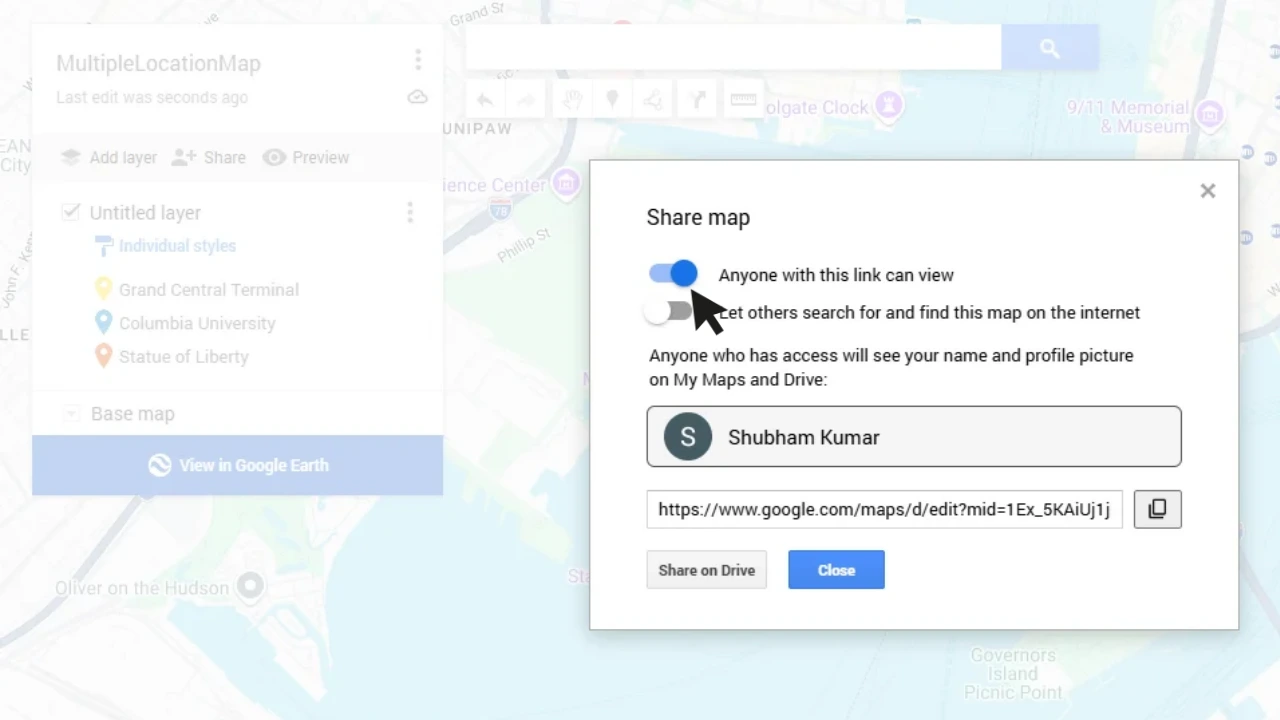
In the sharing dialog, enable Anyone with this link can view. Viewer access is sufficient; website visitors do not need permission to edit the map. Copy the URL shown in the dialog using the copy button beside it.
Test the copied link in a private or incognito browser window. If the map opens without asking for access, its permissions are ready. If it requests a sign-in or permission, return to Share and check the link-viewing setting.
Step 6
Paste the URL and generate responsive embed code
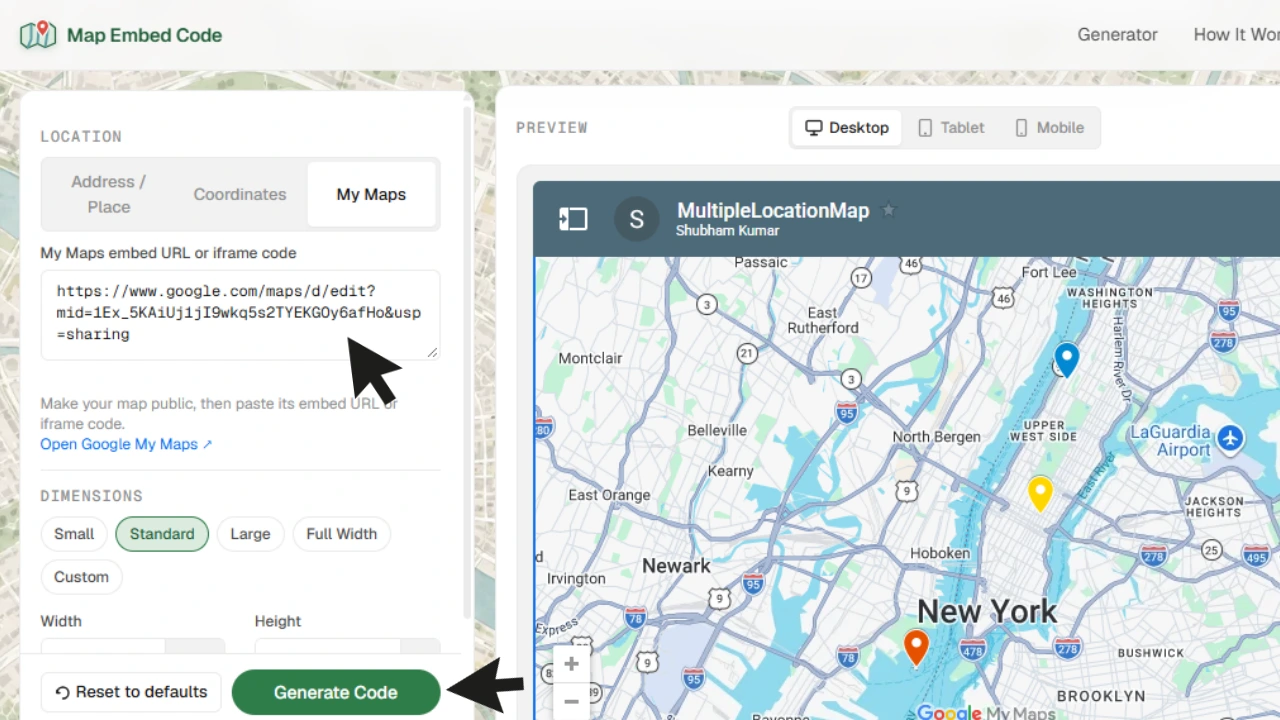
Return to the Map Embed Code generator, select the My Maps tab, and paste the copied URL into the My Maps embed URL or iframe code field. The generator accepts the shared Google My Maps URL and converts it into an embeddable map preview.
- Confirm that every saved marker appears in the live preview.
- Choose a dimension preset or enter a custom width and height.
- Keep responsive mode enabled so the map fits mobile screens.
- Select Generate Code, then copy the finished HTML from the popup.
Paste the multiple-location map into your website
Add the generated code in an HTML or embed block on the page where the map should appear. Use a page preview before publishing and check the map at desktop and mobile widths.
- WordPress: paste it into a Custom HTML block. See the WordPress map embed guide.
- Shopify: use a Custom Liquid or HTML-capable section. See the Shopify map embed guide.
- Wix, Squarespace, or Webflow: place it in the platform’s Embed Code or HTML Embed element.
- Plain HTML: paste it inside the page’s
<body>where the map should render.
How to add many locations at once with CSV or Google Sheets
Adding a handful of pins manually is quick. For dozens or hundreds of locations, prepare a spreadsheet with a header row and at least one column containing addresses, place names, or latitude and longitude values.
- In My Maps, create or select a layer.
- Click Import under the layer name.
- Upload a CSV, XLSX, KML, KMZ, GPX, TSV file, or select a Google Sheet.
- Choose the columns My Maps should use to position the markers.
- Choose the column that should become each marker’s title.
- Review unmatched rows and correct any incomplete addresses.
Google documents a limit of 2,000 rows per imported layer. Splitting a larger list into clear categories also makes the final map easier for visitors to use.
Multiple markers versus multi-stop directions
This method displays several independent locations on one map. It does not automatically connect them as a route. Use multiple markers for branch finders, property listings, service areas, venue guides, and pickup points. Use multi-stop directions when visitors need an ordered route from an origin through intermediate stops to a destination.
Troubleshooting a Google Map with multiple locations
- The embedded map asks visitors to sign in
- Return to My Maps sharing settings and allow public or link-based viewing. Test the map in an incognito window.
- One or more pins appear in the wrong place
- Use the complete address, including city and postal code, or replace the address with exact latitude and longitude coordinates.
- The map is cut off on mobile
- Generate the code again with responsive mode enabled. Also check that the parent page column does not have a fixed minimum width.
- New markers do not appear on the website
- Confirm you edited the same My Map used by the iframe, save the changes, and refresh the page without browser cache.
- The copied My Maps URL is rejected
- Copy the complete URL from the Google My Maps sharing dialog. Confirm that it belongs to google.com/maps/d and that link viewing is enabled.
Frequently asked questions
Can I embed multiple locations without a Google Maps API key?
Yes. Create the markers in Google My Maps, enable link viewing, and paste the shared URL into the generator. You need a Google account to create the map, but this workflow does not ask for a Maps API key.
How many locations can I put on one map?
Google states that a My Map can contain up to 10,000 places, lines, or shapes. A single layer can contain up to 2,000 features, so larger maps should use several well-named layers.
Can visitors filter the locations?
Visitors can show or hide layers. Organize categories such as stores, warehouses, and pickup points into separate layers to provide a simple filter.
Will edits update the embedded map?
Yes. The iframe loads the saved My Map, so changes to its locations or styles usually appear without replacing the embed code.
Does this create directions between every location?
No. It creates a map with multiple pins. Directions are a separate feature for an ordered route.
Official Google references
Make your My Maps embed responsive
Paste your Google My Maps iframe and generate clean embed code for your website.